Show Page Geometry
Show Page Geometry is a viewer mode for inspecting PDF page boundaries and content that may sit outside the visible crop region.
You can turn it on from the Show Page Geometry button on the PDF toolbar, from , or from the PDF Boxes (Geometry) section in the Pages tab.
What it does
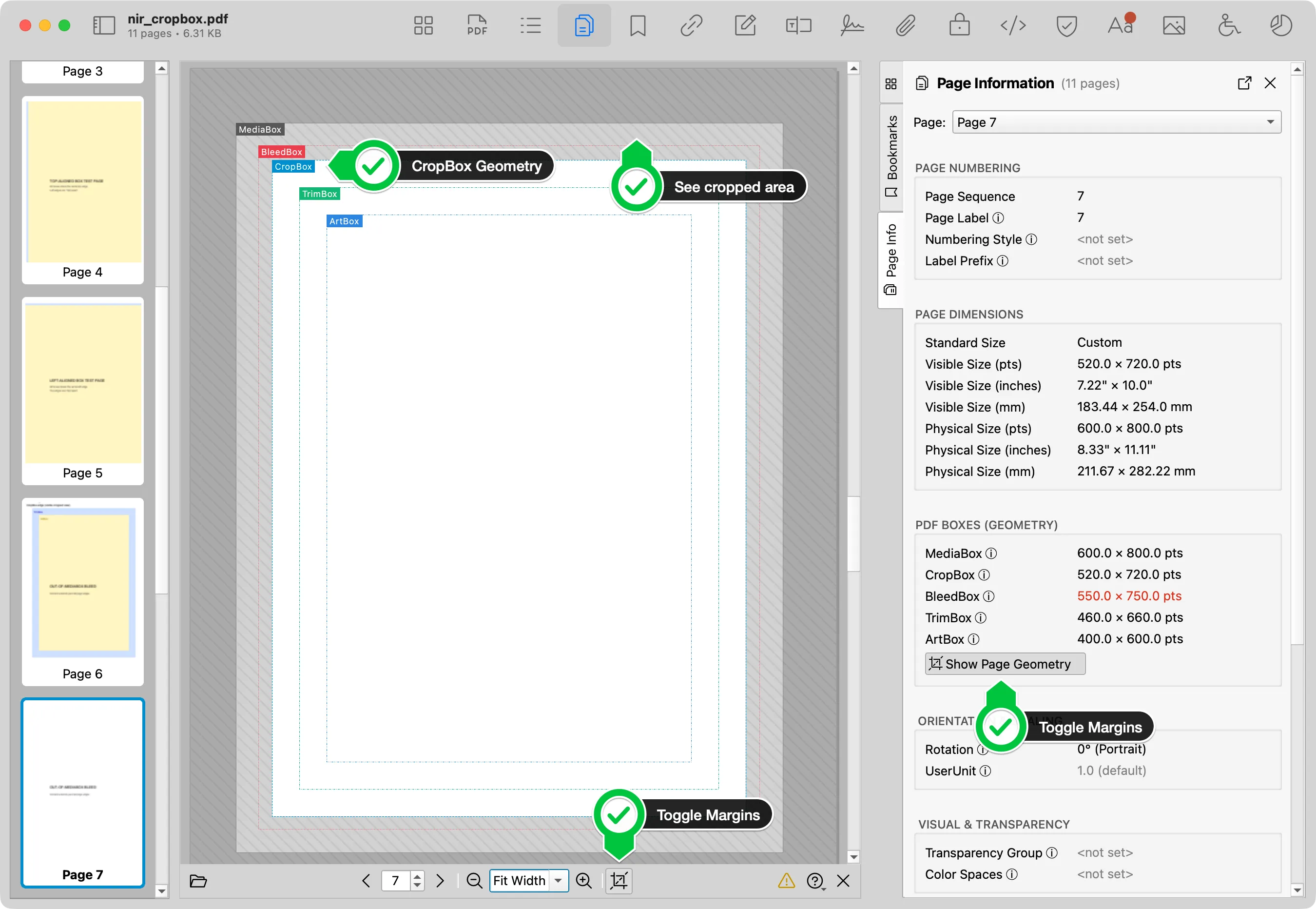
When Show Page Geometry is on, PDF Auditor widens the preview beyond the normal CropBox view so you can inspect content that would otherwise be clipped.
The preview adds visual overlays:
- The area outside the CropBox is dimmed and hatched.
- Content outside the MediaBox is dimmed more strongly.
- Page boxes are outlined and labeled when they are actually set in the PDF.
- The MediaBox is always shown when page geometry is available.
Show Page Geometry is a viewing mode only. It does not save, repair, crop, uncrop, or otherwise modify the PDF.
Box labels
PDF Auditor draws the page boxes in PDF box hierarchy order:
- MediaBox: the physical page medium. This box is required.
- BleedBox: the production bleed area.
- CropBox: the region normally clipped for display and print.
- TrimBox: the intended finished page size after trimming.
- ArtBox: the meaningful content area.
Boxes that are set but overlap another box can still be labeled. A label means the box is present in the PDF structure, not necessarily that it creates a visibly different boundary.
See geometry in Pages tab
The Pages tab shows the exact numeric geometry for the selected page in PDF Boxes (Geometry). Use it when you need the measured MediaBox, CropBox, BleedBox, TrimBox, or ArtBox values rather than only the preview overlay.
Use both together:
- Select a page in the Pages tab.
- Review the numeric box sizes and warnings in PDF Boxes (Geometry).
- Turn on Show Page Geometry.
- Compare the overlay against visible page content.
The Pages tab color-codes the geometry values:
- Normal text means the box is present and fits within the expected boundary.
- Grey text means it matches the effective parent boundary and does not add a distinct region.
- Red text means the box extends beyond its allowed parent boundary. Hover the value for the warning note; PDF renderers clip that box to the parent boundary.
When to use it
Use Show Page Geometry when you need to:
- Check whether content exists outside the visible page crop.
- Compare CropBox, MediaBox, BleedBox, TrimBox, and ArtBox visually.
- Investigate unexpected page size, bleed, trim, or crop behavior.
- Review PDFs before print, publishing, redaction, or distribution.