Highlight Findings in the PDF
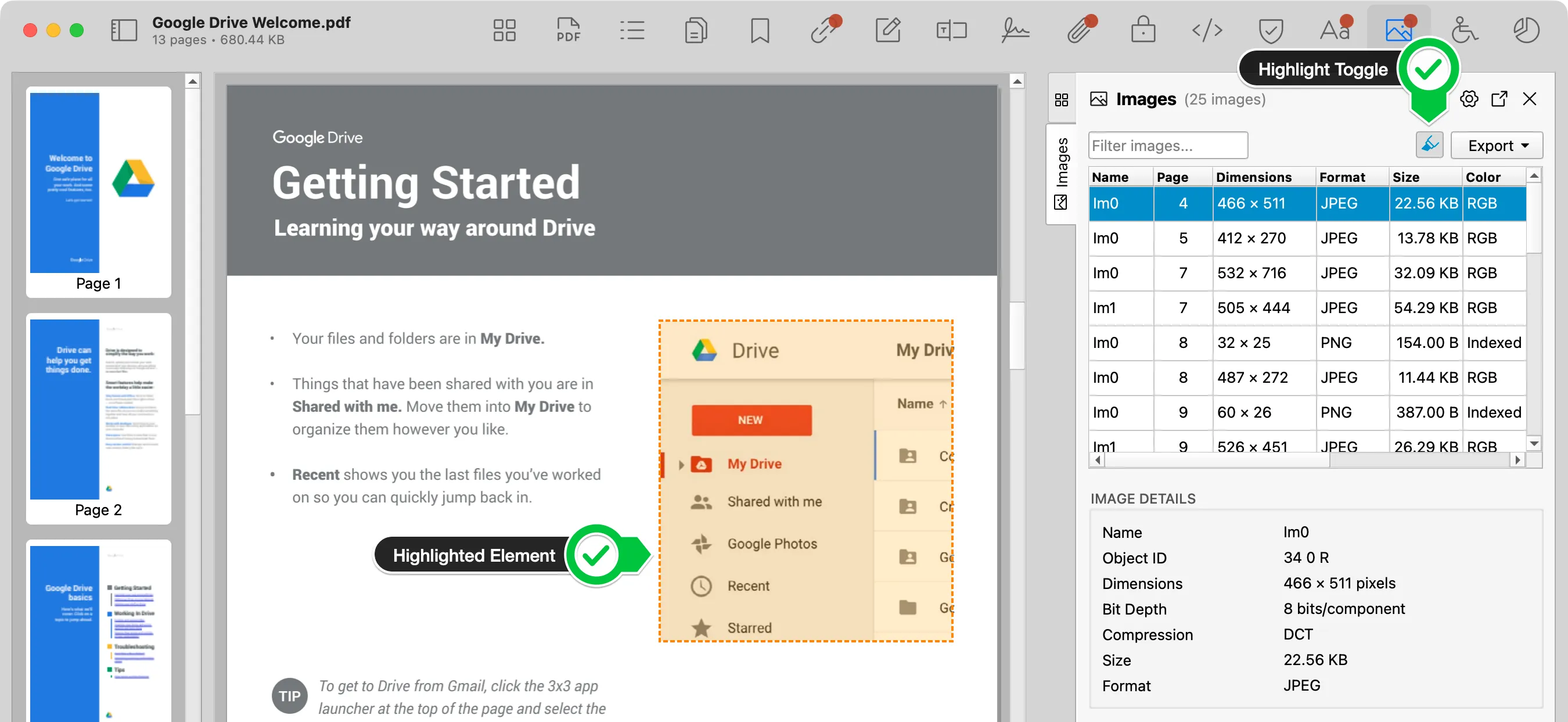
Some tabs can highlight and scroll to the corresponding location in the PDF preview when you select a result. This works for table rows and scan findings connected to visible page content, such as annotations, links, images, or accessibility structure.
How this works
- Select a row or finding in a supported tab.
- Check the preview for the highlighted page area or related page context.
- Turn off highlighting toggle if you want to turn off highlighting.
Limits
Not every PDF structure maps cleanly to a visible page rectangle. Some objects are document-level, inherited, off-page, hidden, or only meaningful to a PDF viewer.