Open your first PDF
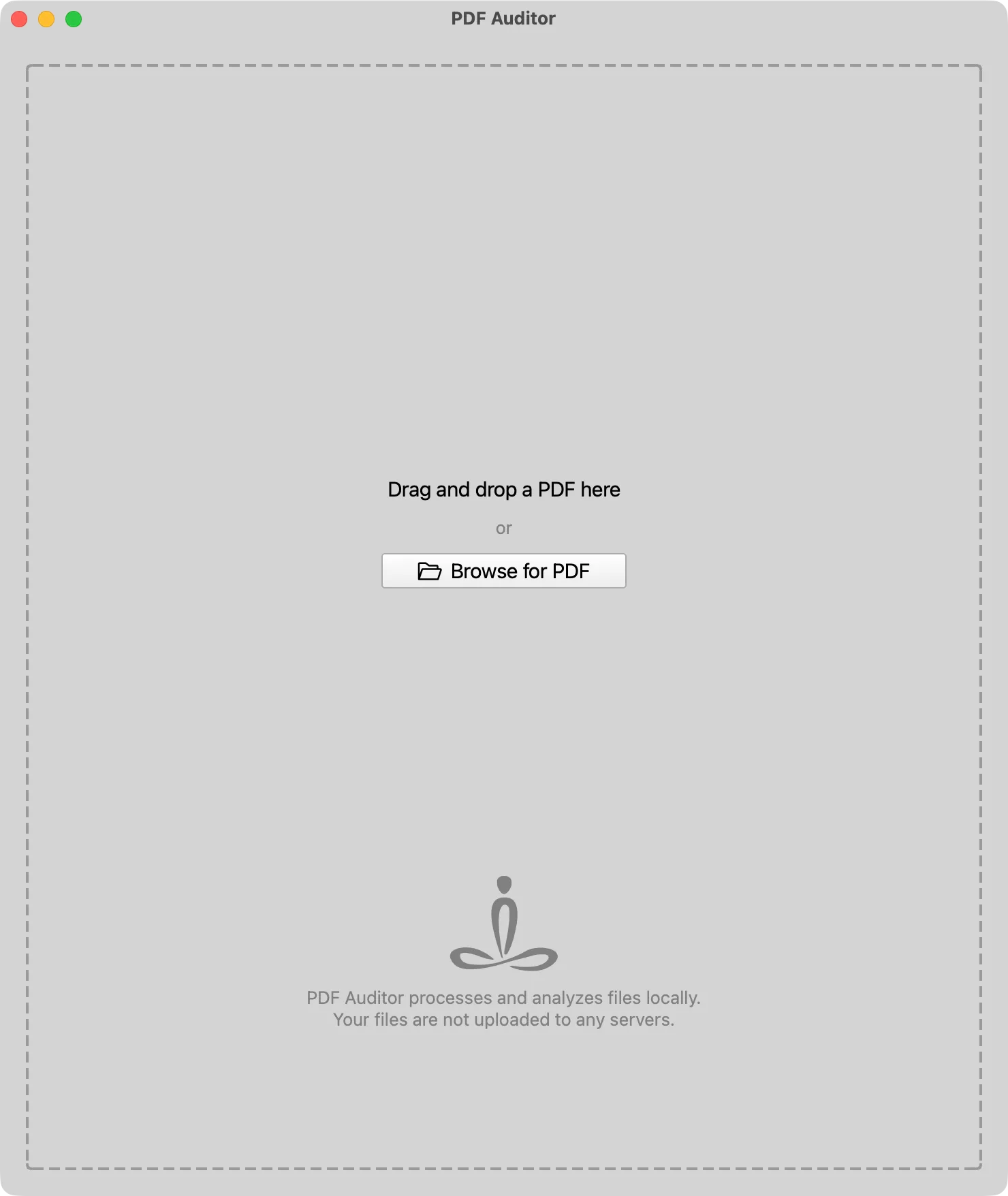
Open a PDF from the app by dragging in a file or browsing to locate one. You can also use Finder’s Open With menu when you right click a PDF file.
PDF Auditor loads the document, renders page previews, and populates the inspection tabs.
First review path
- Start with File Info to confirm the file, page count, PDF version, and basic document properties.
- Open Metadata to compare document information and XMP metadata.
- Check Security for encryption, password requirements, and permission flags.
- Review Size Analysis when you need to understand file size composition.
- Run Forensics when the file is untrusted, sensitive, redacted, or workflow-critical.
Password-protected PDFs
If a PDF requires a password, enter it when prompted. Some inspections may be unavailable until the file is successfully unlocked.
Next steps
Use tab-specific pages when you need to inspect links, annotations, attachments, images, fonts, JavaScript, forms, signatures, accessibility tags, or size composition.