
JavaScript Tab
What it shows
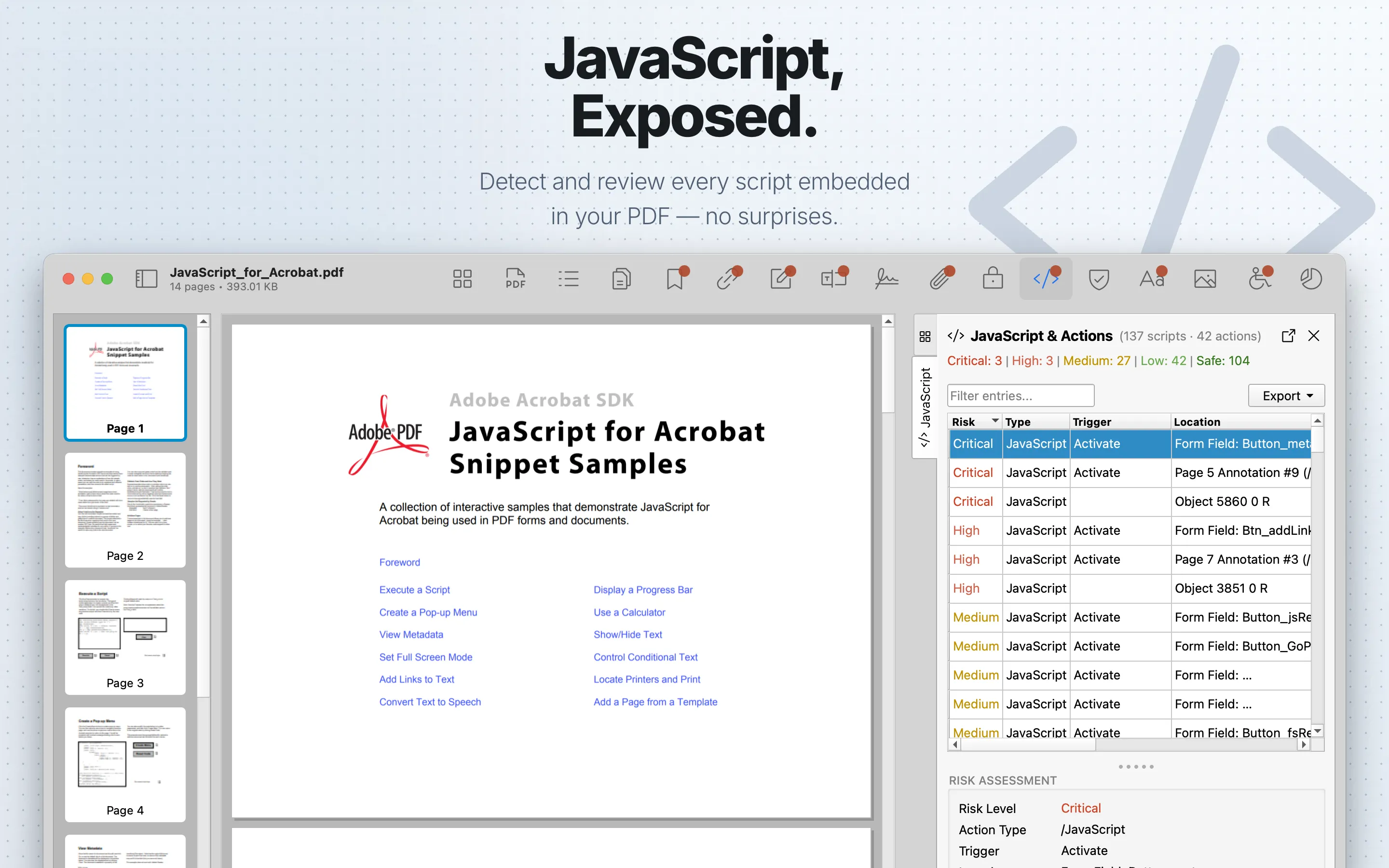
The JavaScript & Actions tab lists JavaScript entries and PDF actions detected in the document. It includes risk level, action type, trigger, location, and code or action content when available.
When to use it
Use it for untrusted PDFs, interactive forms, and documents with unexpected behavior.
JavaScript Table
| Column | What it means |
|---|---|
| Risk | PDF Auditor’s risk classification for the script or action. |
| Type | The JavaScript or PDF action type. Hover for the raw action subtype when available. |
| Trigger | The event that runs the action, such as open, close, page, annotation, or form events. |
| Location | Where the action was found in the PDF structure. |
| Object ID | The related PDF object reference when available. |
| Page | The related page when the action is page- or annotation-associated. |
| Target | The action target, such as a field, annotation, page, URL, or chained action target. |
| Size | The script or action content size. |
| Storage | Where the code or action is stored, including compression details when present. |
| Chained | Whether the action is part of a chained action sequence. |
Review steps
- Review each script location and action source.
- Look for code that submits data, opens URLs, launches actions, or changes viewer behavior.
- Cross-check Forms and XFA , Annotations , and Links .
- Treat unexpected JavaScript in external files as a reason for deeper review.
Details
Use the filter field to search entries. The table sorts high-risk entries first by default.
Select a row to open Risk Assessment, which shows Risk Level, Action Type, Trigger, Location, and Risk Factors. The Code Inspector shows the selected script or action content with syntax highlighting. Use Download to save the current code snippet.
Export
JavaScript & Actions can export table data as CSV or JSON. Export requires PDF Auditor Pro.
Tab settings
The tab settings menu includes Hide GoTo actions and Hide URI actions. Both are on by default so routine navigation and URL actions do not overwhelm script review; turn them off when you need a complete action inventory.