Annotations Tab
What it shows
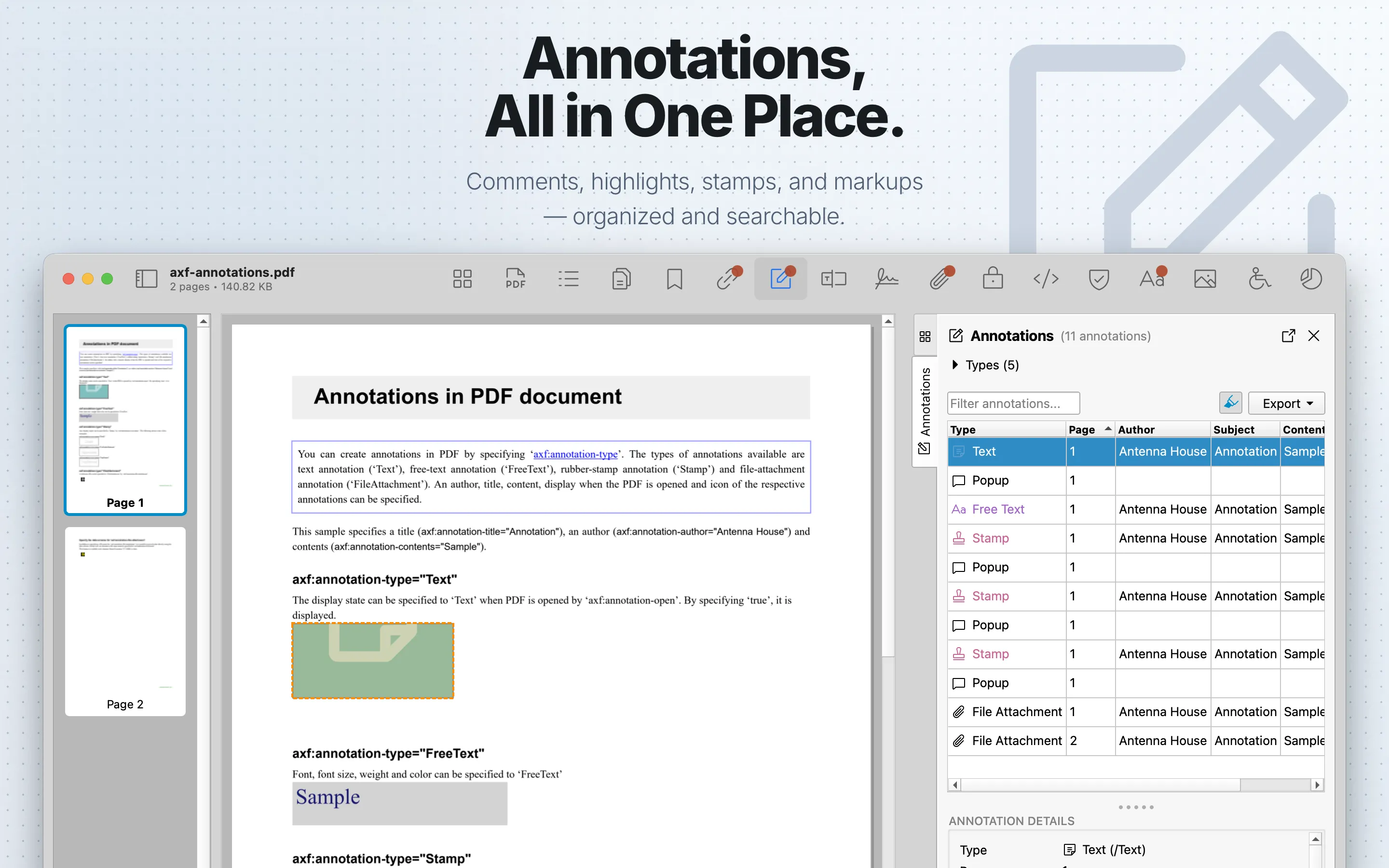
Annotations lists PDF annotation entries, including annotation type, page location, contents, authoring data, appearance-related fields, and interactive action details when present.
When to use it
Use it to audit markups, comments, links, attachments, and hidden annotation-based content.
Annotations Table
| Column | What it means |
|---|---|
| Type | The annotation type, such as text, link, highlight, stamp, file attachment, widget, or another PDF annotation subtype. |
| Page | The page where the annotation appears. |
| Author | The annotation author or title field when the PDF provides one. |
| Subject | The annotation subject field when available. |
| Content | The annotation contents. Long text is shortened in the table; select the row for full details. |
Review steps
- Sort or scan by annotation type and page.
- Select important annotations to locate them in the PDF preview when highlighting is available.
- Check contents, authors, dates, visibility, and actions for unexpected values.
- Review related Links , Attachments , and JavaScript findings when an annotation is interactive.
Highlight findings
Supported annotations can be selected to locate them in the PDF preview. Use the highlight button in the toolbar to turn PDF highlighting on or off.
Details
The collapsible type summary shows annotation counts by type. Select a row to open Annotation Details, which displays the selected annotation’s type, page and rectangle information, contents, author, dates, flags, color, border, appearance, action data, and related object information when available.
Use the filter field to search annotations. Columns are sortable and movable.
Export
Annotations can export table data as CSV or JSON. Export requires PDF Auditor Pro.
Tab settings
The tab settings menu includes Hide link annotations. It is on by default, so link annotations are normally reviewed in the dedicated Links tab instead of mixed into the annotation list.