Keyboard Shortcuts
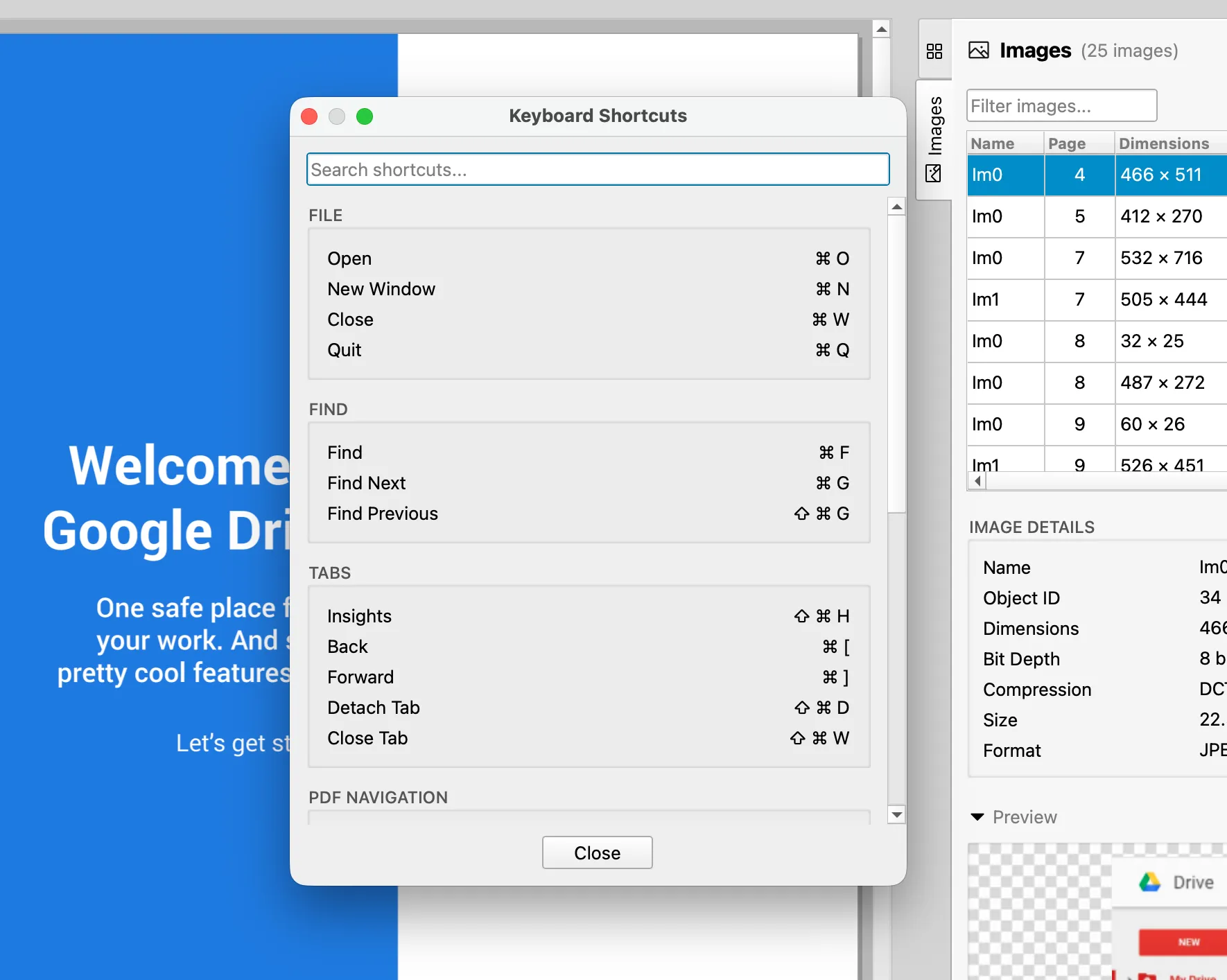
Open the Keyboard Shortcuts dialog in PDF Auditor to review available commands and shortcut groups.
Open the shortcuts dialog
Choose from the menu bar, or press ⌘ /.
The dialog includes a search field. Type a command name or group name to filter the list.
File
| Action | Shortcut |
|---|---|
| New Window | ⌘ N |
| Open | ⌘ O |
| Close PDF | ⌘ W |
| Quit PDF Auditor | ⌘ Q |
Find
| Action | Shortcut |
|---|---|
| Find | ⌘ F |
| Find Next | ⌘ G |
| Find Previous | ⇧ ⌘ G |
Navigation
PDF Auditor supports tab history navigation and common macOS keyboard workflows.
Tabs
| Action | Shortcut |
|---|---|
| Insights | ⇧ ⌘ H |
| Back | ⌘ [ |
| Forward | ⌘ ] |
| Detach Tab | ⇧ ⌘ D |
| Close Tab | ⇧ ⌘ W |
Detach Tab and Close Tab are available when a PDF is open and a non-Insights tab is active.
PDF navigation
| Action | Shortcut |
|---|---|
| Previous Page | ⌥ ↑ or Page Up |
| Next Page | ⌥ ↓ or Page Down |
| Go to Page | ⌥ ⌘ G |
PDF zoom
| Action | Shortcut |
|---|---|
| Zoom In | ⌘ + |
| Zoom Out | ⌘ - |
| Actual Size | ⌘ 0 |
| Zoom to Fit Page | ⌘ 1 |
| Zoom to Fit Width | ⌘ 2 |
Window
| Action | Shortcut |
|---|---|
| Minimize | ⌘ M |
| Fill | ⌃ ⌘ F |
| Center | ⌃ ⌘ C |
Help
| Action | Shortcut |
|---|---|
| Keyboard Shortcuts | ⌘ / |
When shortcuts help
Shortcuts are most useful during repeated review: opening files, switching tabs, moving through tab history, finding text, and connecting findings with the preview.
If a shortcut does not work
Confirm that the PDF Auditor window is active and that focus is not inside a field that is using the same key combination for text entry.