PDF Toolbar
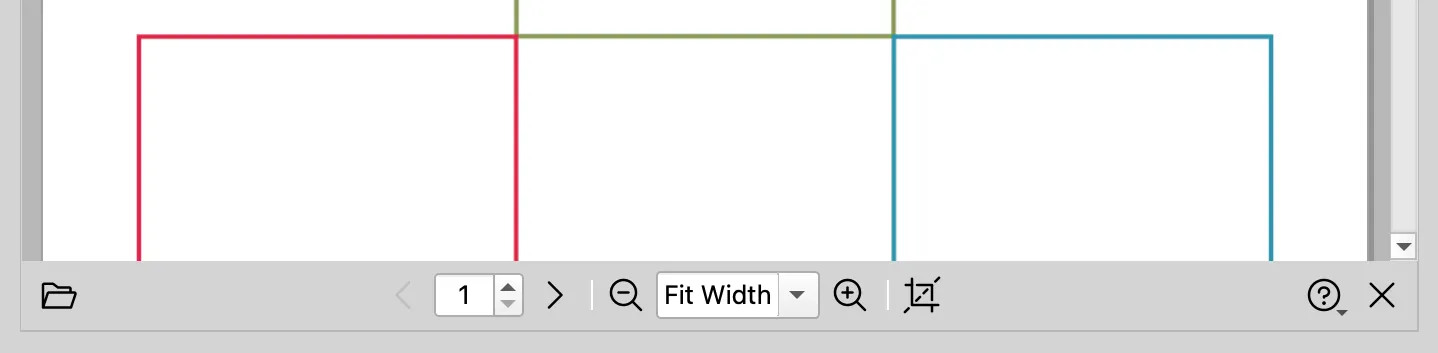
The PDF toolbar sits below the PDF preview. It contains the most common document viewing actions.
Toolbar actions
| Action | What It Does |
|---|---|
| Open | Opens a PDF. |
| Previous Page | Moves to the previous page. The same action is available from the View menu and by keyboard shortcut. |
| Page Selector | Jumps to a page number. Type or step to a page number to move the preview. The selector is enabled after a PDF is open. |
| Next Page | Moves to the next page. The same action is available from the View menu and by keyboard shortcut. |
| Zoom Out | Decreases the preview zoom. |
| Zoom Selector | Changes the zoom mode or zoom percentage. It includes Fit Width, Fit Page, and fixed percentage levels. |
| Zoom In | Increases the preview zoom. |
| Show Page Geometry | Toggles the geometry overlay that reveals content outside the CropBox and labels PDF page boxes. See Show Page Geometry for details. |
| Help | Opens a menu with feedback, support, feature request, and App Store rating actions. |
| Close | Closes the current PDF. |
Toolbar help actions
| Action | What It Does |
|---|---|
| Send Feedback | Opens an email for general product feedback. |
| Request a Feature | Opens an email for feature requests. |
| Report an Issue | Opens an email for support or bug reports. |
| Rate PDF Auditor on the App Store | Opens the App Store rating flow. |
Related view menu actions
Some PDF viewing actions are available from the View menu even when they are not shown as separate toolbar buttons:
| Action | What It Does |
|---|---|
| Go to Page… | Focuses the page selector. |
| Actual Size | Switches zoom to 100%. |
| Zoom to Fit Page | Fits the full page in the preview. |
| Zoom to Fit Width | Fits the page width in the preview. |
| Continuous scroll | Switches between continuous multi-page scrolling and single-page mode. |
| Show Thumbnails | Shows or hides the thumbnail navigator. |
| Show Page Geometry | Matches the toolbar geometry button. |
Keyboard shortcuts
Common toolbar actions also have keyboard shortcuts. See Keyboard Shortcuts for the full list.
Focus and scrolling
The page selector and zoom selector ignore mouse-wheel changes while focused. This prevents accidental page or zoom changes when scrolling the document.