Images Tab
What it shows
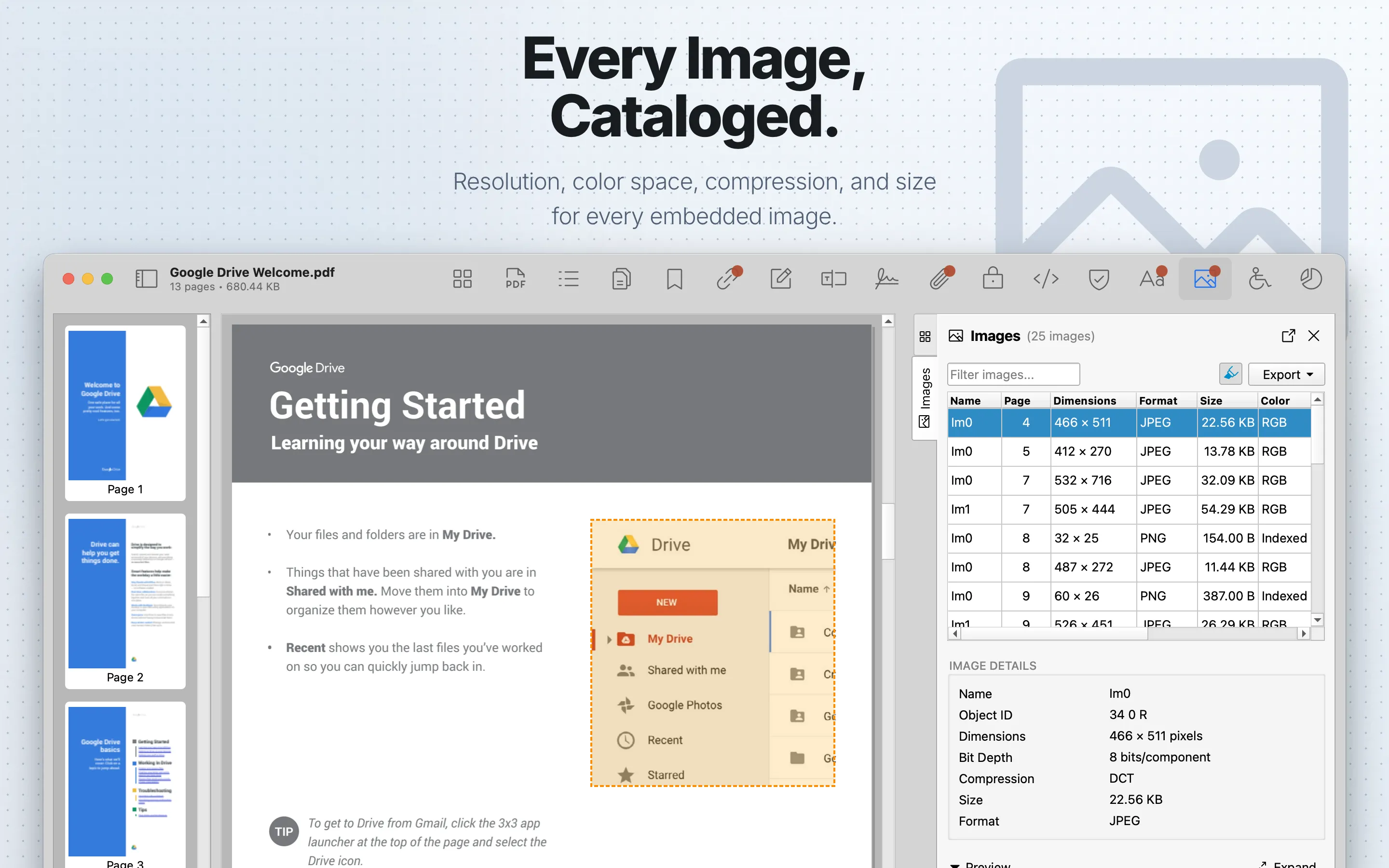
Images lists embedded raster images, including object identifiers, page references, dimensions, color and compression details, format information, size data, previews, and extraction controls where supported.
When to use it
Use it for asset audits, tracking-pixel checks, and production troubleshooting.
Images Table
| Column | What it means |
|---|---|
| Name | The image resource name reported by the PDF. |
| Page | The page where the image is used. |
| Dimensions | The pixel width and height of the embedded image. |
| Format | The detected image format when PDF Auditor can identify one. |
| Size | The image stream size. A loading marker may appear while size data is computed. |
| Color | The image color space. |
| Bits | Bits per component for the image samples. |
| Compression | The PDF filter or compression method used by the image stream. |
| Object ID | The PDF object reference for the image XObject. |
Review steps
- Review image dimensions, page references, and preview thumbnails.
- Look for unusually small tracking images, unexpectedly large images, or repeated assets.
- Compare image findings with Size Analysis when file size is a concern.
- Export images only when permitted by your workflow.
Export
Viewing image details is available without Pro. Exporting image table data as CSV or JSON requires PDF Auditor Pro.
Use the export menu to save the image list as CSV or JSON. These exports contain image metadata such as page, dimensions, format, size, color space, compression, and object ID.
Save Images
Saving extracted images requires PDF Auditor Pro.
Use Save Image to save the selected image. Use Save All Images… to extract all listed images to a folder.
Expand Preview
Use Expand to open the selected image in a larger preview window. The expanded preview can switch between fit-to-window and actual-size display, making it easier to inspect image quality, transparency, cropping, and pixel-level details.
When saving is available, the expanded preview can also save the image.
Details
Use the filter field to search images. Select a row to open Image Details and the image preview. When highlighting is enabled and PDF Auditor has computed the image rectangle, selecting an image highlights its location in the PDF preview.
Image sizes and rectangles are computed in the background after the initial PDF render, so some size or highlight information may appear shortly after the table first loads.
Tab settings
The tab settings menu includes Hide 1×1 pixel images. It is on by default and skips common marker or tracking-style images such as flexo plate markers, RIP output, and tracking pixels.