
Signatures Tab
What it shows
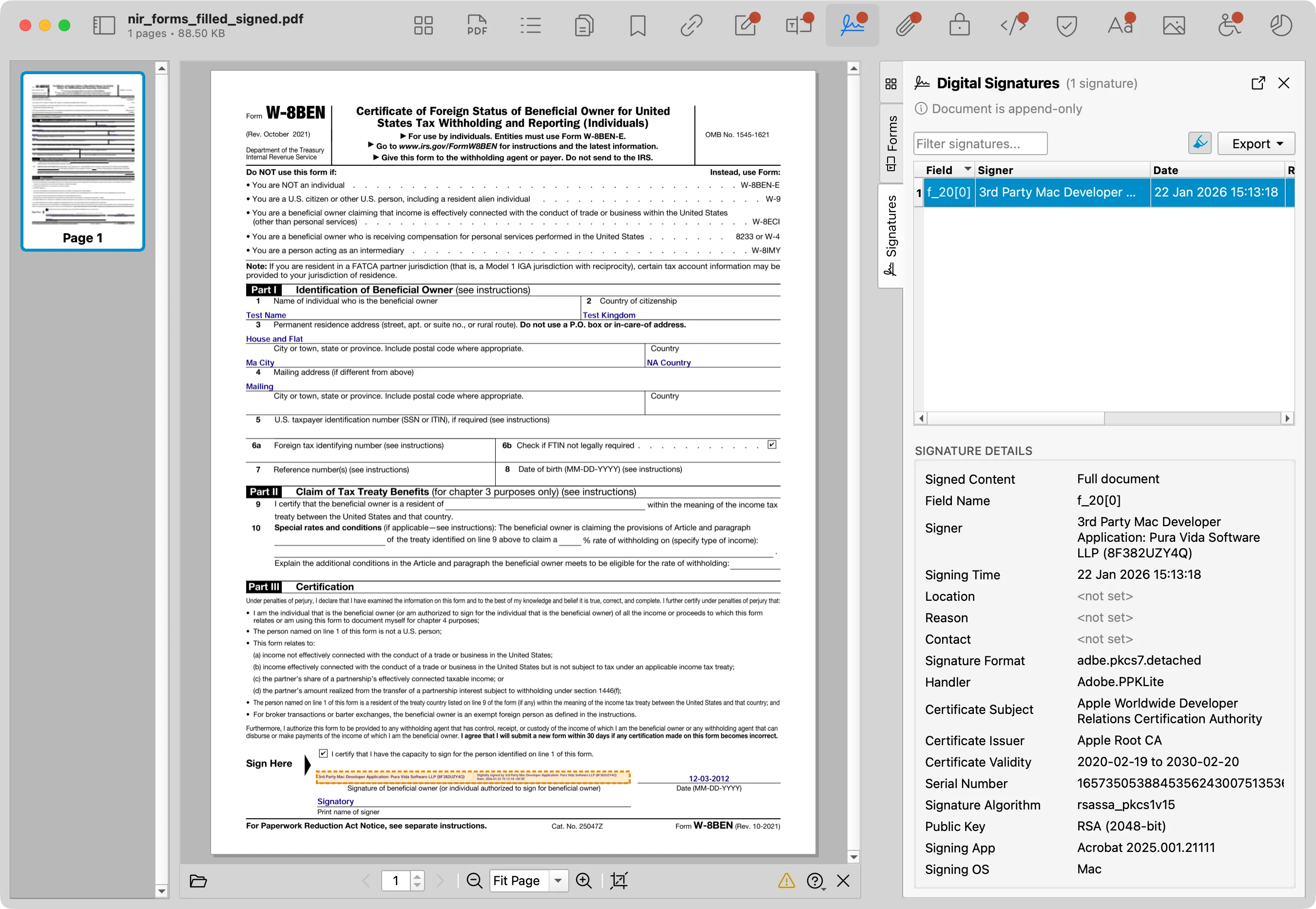
Signatures lists detected digital signature fields and related signature metadata. When signatures are present, the tab also reports whether the document is marked append-only or whether edits may invalidate signatures.
When to use it
Use it to locate signature structures before deeper validation in a dedicated signature workflow.
Signatures Table
| Column | What it means |
|---|---|
| Field | The PDF signature field name. |
| Signer | The signer name from the signature dictionary or certificate when available. |
| Date | The signing time reported by the PDF. |
| Reason | The signing reason stored in the signature field. |
Review steps
- Check whether the PDF contains signature fields.
- Review certificate and timestamp details when available.
- Compare signature presence with the expected approval or distribution workflow.
- Review Security and Forensics for related document state.
Details
Use the filter field to search signatures. Select a row to open Signature Details. Details include signed-content coverage, field name, signer, signing time, location, reason, contact, signature format, handler, authentication fields, certificate subject and issuer, certificate validity, serial number, signature algorithm, public key details, and signing application data when present.
When highlighting is enabled and page rectangle data is available, selecting a signature can highlight its location in the PDF preview.
Export
Signatures can export table data as CSV or JSON. Export requires PDF Auditor Pro.